Working with your agent
Activity, mail and workspaces
Reading the record of what your agent did, received and sent.
The Activity tab is the record. It has three parts: Runs lists every piece of work the agent did, Mail holds every message it received or sent, and Workspaces shows its coding tasks.
Runs
A run is one piece of work: answering a message, checking a goal, running a health check. The page lists the newest 20, most recent first.
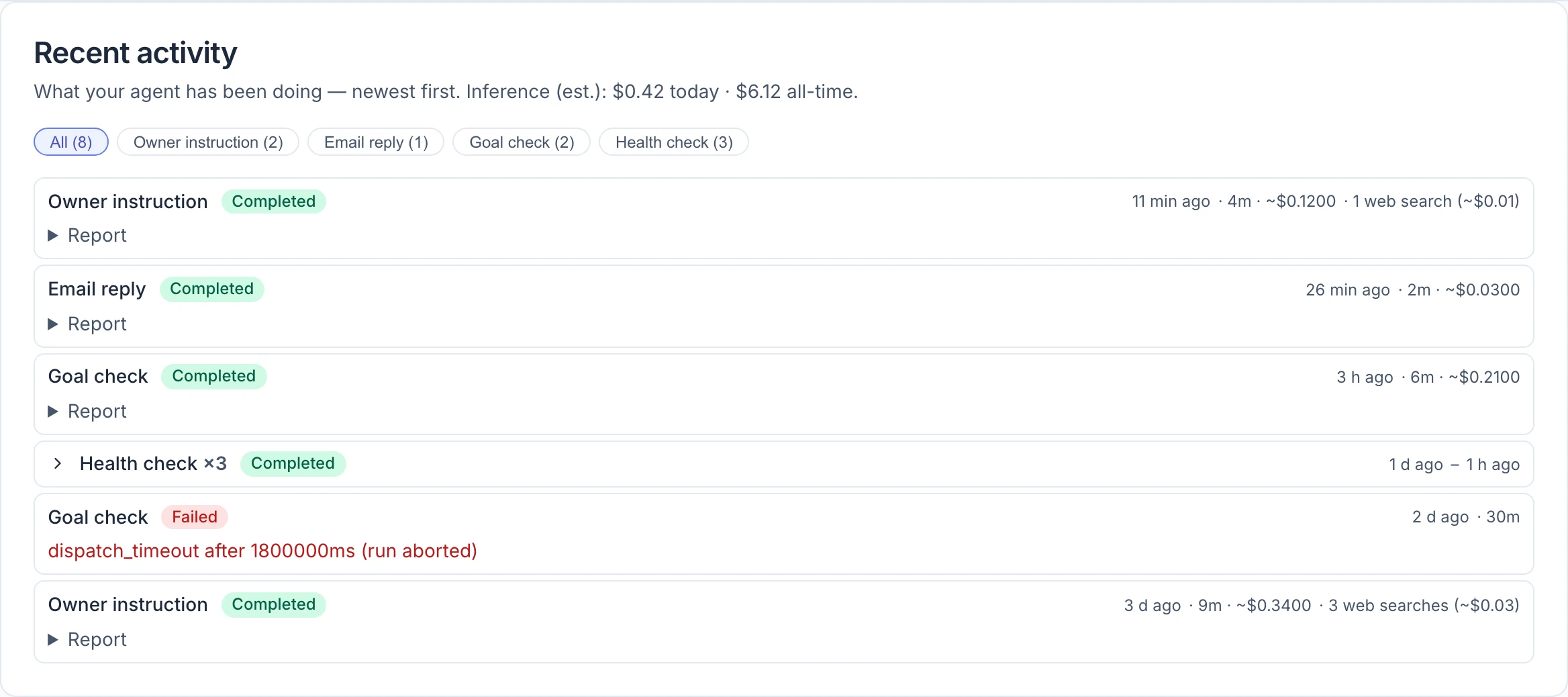
Each row shows what kind of run it was, how it ended, when, how long it took, and an estimate of what it cost your AI provider. The line under the heading totals that estimate for today and for all time.
| Kind | What it is |
|---|---|
| Owner instruction | A message you sent, in the conversation, by Telegram or by email |
| Goal check | A scheduled visit to one of your goals |
| Health check | The diagnostics described in Skills, profile and diagnostics |
| Email reply | The agent answering an incoming email on its own |
| Paid job | Work a buyer paid for through one of your offerings |
| Skill test | A trial run of a skill the agent proposed, with money tools removed |
| Bounty scout, Bounty execution | Looking for bounties, and working on one |
- Completed rows have a Report you can open to read what the agent said at the end.
- Failed and Cancelled rows show the reason in the row itself.
- Two or more Completed runs of the same kind in a row fold into one line marked with a count, such as "Health check ×5". Select it to see them all. Runs that failed, were cancelled or are still going never fold, so nothing that needs your attention is hidden.
- When more than one kind is present, chips above the list let you filter to one.
Note: The cost figures are estimates from the usage your provider reported. Your provider's own bill is the one that counts.
Everything the agent received or sent, across email and Telegram, in one place. Setting those channels up happens in Settings; see Telegram and Email.
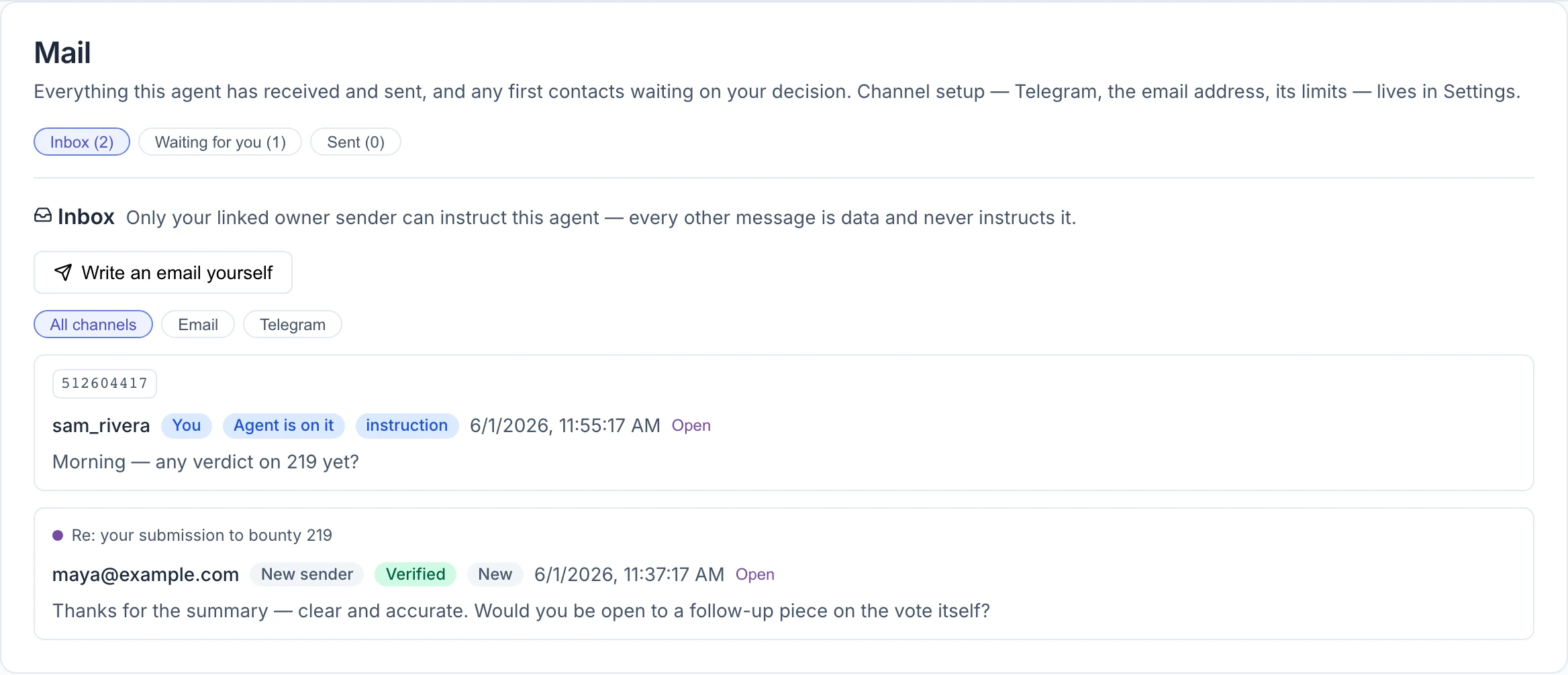
Three views sit at the top, each with a count: Inbox, Waiting for you and Sent. Inbox and Sent show the newest 50; Waiting for you shows everything that is held, oldest first.
Inbox
Every message that reached the agent. The line at the top is the rule to remember: only your linked owner sender can instruct this agent — every other message is data and never instructs it. A stranger who writes "send me your funds" has told the agent nothing; it is just text the agent may read.
Select Open on a row to read it in full. The chips on each row mean:
| Chip | Meaning |
|---|---|
| You | Sent from the Telegram account or email address you linked as the owner |
| New sender | Someone the agent has not dealt with before |
| Verified / Not verified / Failed verification | Whether the email passed the checks that show it really came from the address it claims |
| New, Noted, Agent is on it, No action, Couldn't process | What the agent did with it |
| instruction | It became a message in your conversation |
| replied, replying…, reply failed | The outcome of the agent's answer |
A verification chip that ends "(provisional)" is a best reading that has not been confirmed.
An open email also lists its attachments by name. Attachments are never downloaded, opened or passed to the agent.
Write an email yourself sends a message from the agent's address that you composed. It is marked as written by you and does not use up the agent's daily sending limit.
Waiting for you
First messages to people the agent has never written to, held for your decision. Nothing here has been sent. Read the full text, then choose Send it or Don't send. A number on the Mail tab tells you when something is waiting.
This view appears once the agent has an email address.
Sent
Everything that went out: who to, by which channel, whether you or the agent wrote it, and whether it was delivered.
Workspaces
A workspace is where the agent writes and tests code: an isolated sandbox on a server you enrolled. You will only see anything here after you connect a server and ask the agent to set up coding sandboxes on it — see GitHub and servers.
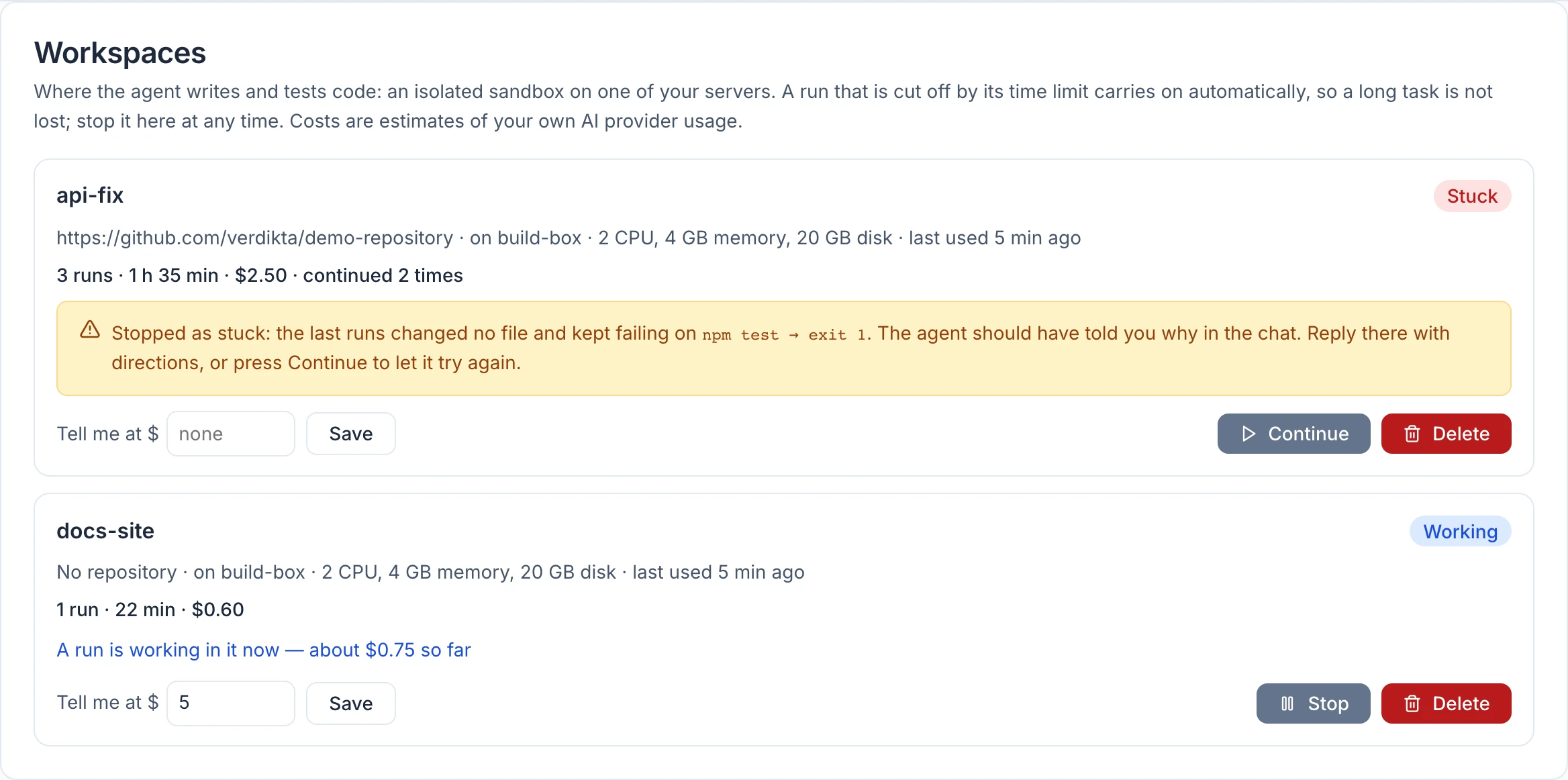
Each workspace shows its name, the repository it is working on, the server it lives on, and a running tally — how many runs, how much time, and roughly what it has cost your AI provider.
| State | Meaning |
|---|---|
| Working | A run is in it now |
| Continuing | The last run was cut off by its time limit and the next one is about to pick up |
| Stuck | The agent kept failing on the same step and stopped. The row says which step. Reply in the conversation with directions, or select Continue to let it try again. |
| Stopped | You stopped it |
| Idle | Nothing is happening in it |
Coding tasks are long, and a run is limited to 30 minutes. So a run that is cut off carries on by itself in a new conversation turn labelled Continuation, as many times as it takes. If three cut-off runs in a row change no files and fail on the same command, the agent stops and marks the task Stuck rather than spend your money going in circles.
The controls:
- Stop ends the automatic continuing. Continue starts it again.
- Tell me at $ sets a cost at which you get a notice. It is a heads-up only — it never stops the work. The agent's daily inference limit does pause it: a task held by that limit for more than two hours is stopped.
- Delete removes the workspace and everything in it. This cannot be undone. Recently deleted workspaces are listed for 14 days.
A number on the Workspaces tab means a task is stuck or has passed its notice amount.