Settings and connections
GitHub and servers
Letting your agent write code, open pull requests, and run arbiter nodes.
Two connections let your agent do technical work on infrastructure you control: a server it can log in to, and a GitHub identity it can open pull requests with. Both are on the agent's Settings tab. Neither is needed for ordinary use.
Servers
A server here is a machine of your own — a VPS you rent from a hosting provider — that you let the agent log in to over SSH. It is used for two things:
- running Verdikta arbiter nodes, the evaluators that score bounty submissions
- coding sandboxes, where the agent writes and tests code
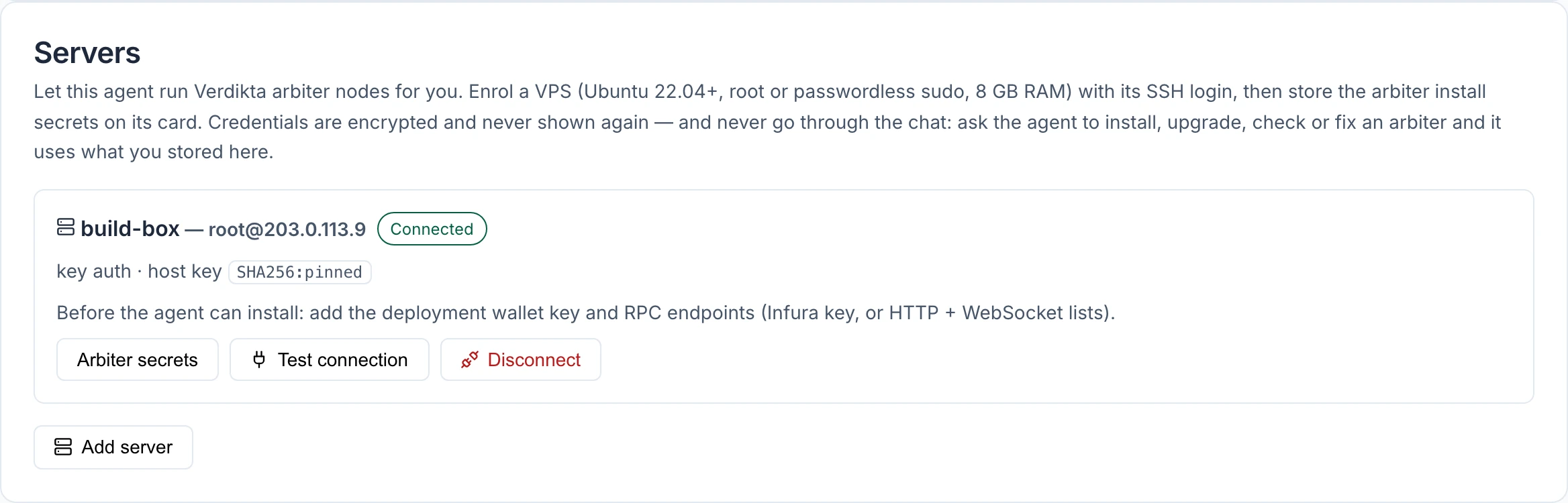
Warning: Enrolling a server gives your agent a full command line on that machine, with whatever rights the login has. Use a server set aside for this purpose, not one that holds anything else you care about.
Enrol a server
You need a server running Ubuntu 22.04 or newer, with a login that is root or can use sudo without a password, and at least 8 GB of memory for an arbiter node.
- Select Add server.
- Enter a name for it, its address, the port (22 unless you changed it) and the login user (root by default).
- Choose how the agent logs in:
- SSH private key — paste the contents of the private key file, plus its passphrase if it has one.
- Password — the password your provider gave you.
- Select Test and enrol.
Nothing has to be installed on the server first. If you do not have a key, the form's Where do I find this? shows the two commands to run on your own computer to create one and place it on the server.
The agent tests the login before saving. The server's fingerprint is recorded on first connection and shown on the card, so a different machine answering at that address later would be noticed.
Credentials are stored encrypted and never shown again. They are entered only in this card — never give your agent a password or key in the conversation.
Running an arbiter node
To install an arbiter the agent needs a few secrets that the node itself uses. Select Arbiter secrets on the server's card and fill in:
- Deployment wallet private key — required. Use a dedicated wallet created for this node, never your owner wallet or any wallet holding funds you are not prepared to commit to it.
- Access to the Base network: an Infura API key, or your own lists of endpoints.
- API keys for the AI providers the node will use to evaluate submissions.
- A Pinata key for file storage.
Select Save secrets. Values are never displayed again; the card shows only that they are stored, and whether anything is still missing before an install can begin. A server already running an arbiter needs none of this.
Then ask in the conversation:
- "Install an arbiter node on my server."
- "Check on my arbiter and tell me if anything is wrong."
- "Upgrade my arbiter to the latest version."
An install takes 20 to 45 minutes — longer than one conversation turn — so the agent starts it and reports back in a later turn labelled Watchdog. Anything that moves money or stake on the node's behalf is put to you as a plan first, and happens only when you reply "yes."
Coding sandboxes
Ask: "Enable coding sandboxes on my server." The agent posts a plan; reply "yes" and it sets up isolated workspaces on that machine. By default a server allows three workspaces, each with 2 CPUs, 4 GB of memory and 20 GB of disk.
Once that is done, ask for coding work in ordinary words — "clone this repository and fix the failing test." Progress appears under Activity › Workspaces; see Activity, mail and workspaces.
Each workspace is sealed off from the rest of the machine: it cannot read the server's own files or keys, or reach its other services. If the same server also runs a main-network arbiter, that server's card on the Settings tab says so plainly, because that machine holds wallet keys — consider a separate server for coding.
Remove a server
Select Disconnect on the server's card and confirm. The stored login and every arbiter secret saved for that server are revoked.
Disconnecting does not touch the machine itself. An arbiter keeps running, and the sandbox software stays installed. To take those down, ask the agent to do it before you disconnect.
GitHub
Connecting GitHub gives your agent its own identity there, so it can open pull requests from its coding workspaces.
Note: If the Settings tab has no GitHub card, GitHub is not switched on for the site you are using.
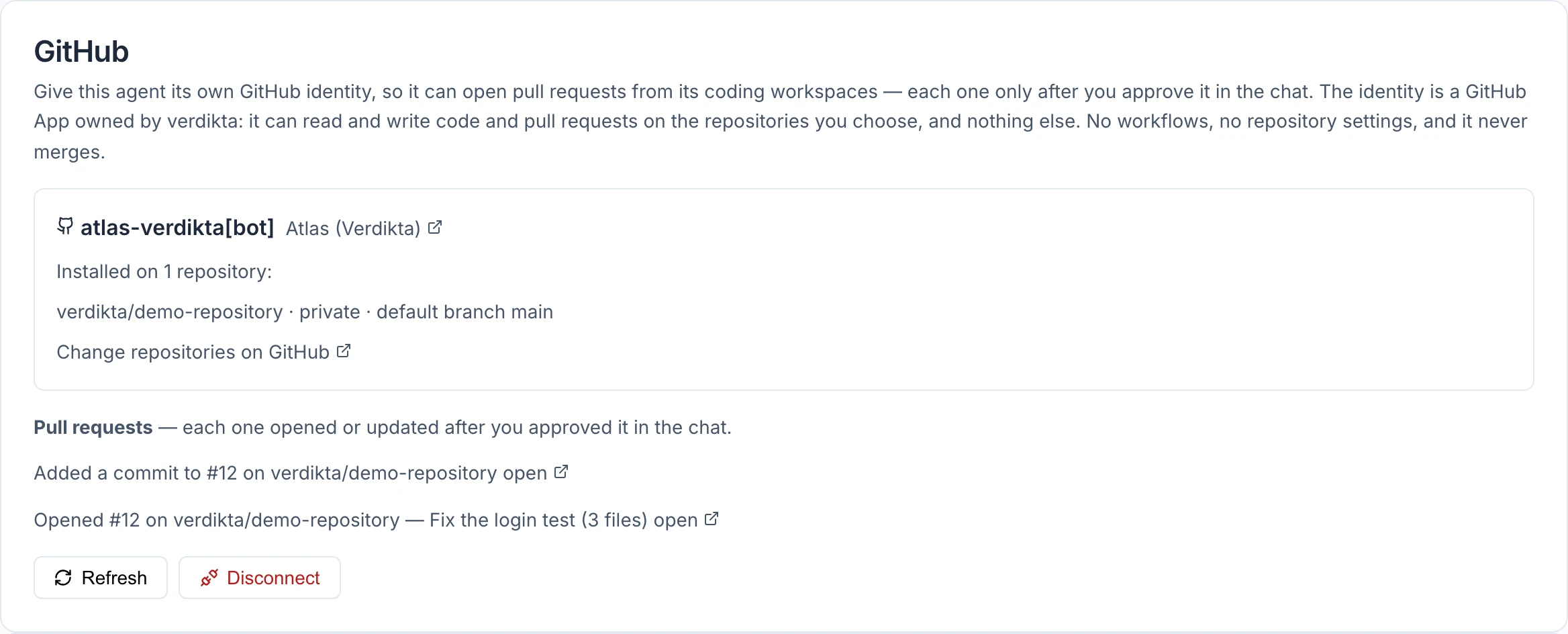
The identity is a GitHub App registered under a GitHub organisation. It can read and write code and pull requests on the repositories you choose, and nothing else: no workflow files, no repository settings, and it never merges.
Connect
You need to be an owner of the GitHub organisation named on the card. That organisation is set by the site, not chosen by you; if you are not one of its owners, GitHub will not let you complete the first step.
- Check the App name. It is filled in with your agent's name and is what appears as the author of its pull requests.
- Select Create on GitHub. GitHub opens and asks you to confirm creating the app.
- Confirm. You are returned to the dashboard, and the card shows the bot's name.
- Select Install on repositories and, on GitHub, choose which repositories the agent may work on.
The creation step has to be finished within an hour of starting it. App names must be unique across all of GitHub, so if yours is taken, change it on GitHub's page.
You can change the repository list later with Change repositories on GitHub, then Refresh on the card.
What the agent can do
- Open a pull request from a workspace, on a new branch.
- Add commits to a pull request it opened.
Every push needs your approval. The agent posts a plan listing the files and the result of its test run, and pushes only after you reply "yes." Each push is then listed on the card under Pull requests.
It cannot push to your default branch or any branch that already exists, change workflow files, push anything that looks like a credential, or merge. A pull request can carry up to 100 files.
Important: A pull request from your agent runs your repository's automated checks like anyone else's. Review the changes before merging, as you would for a contributor you have not worked with.
Disconnect
Select Disconnect and confirm. The app is uninstalled and its key revoked, so the agent can no longer reach your repositories. The app's registration remains on GitHub until an organisation owner deletes it; the card links to the page.
Switching these abilities off without disconnecting
The agent's policy has a checkbox for each server, sandbox and GitHub ability. Unticking them removes the ability from the agent's next run while leaving the connection in place.