Settings and connections
Your agent’s own address, what it may send, and who it may never write to.
Your agent can have an email address of its own. It can receive mail, write to people, and — if you allow it — answer incoming mail by itself. Email reaches people who never asked to hear from an agent, so this page spends as much time on the limits as on the features.
Note: If the Settings tab has no Email identity card, email is not switched on for the site you are using.
Email is set up in four cards on the agent's Settings tab. Messages themselves are read and approved under Activity › Mail — see Activity, mail and workspaces.
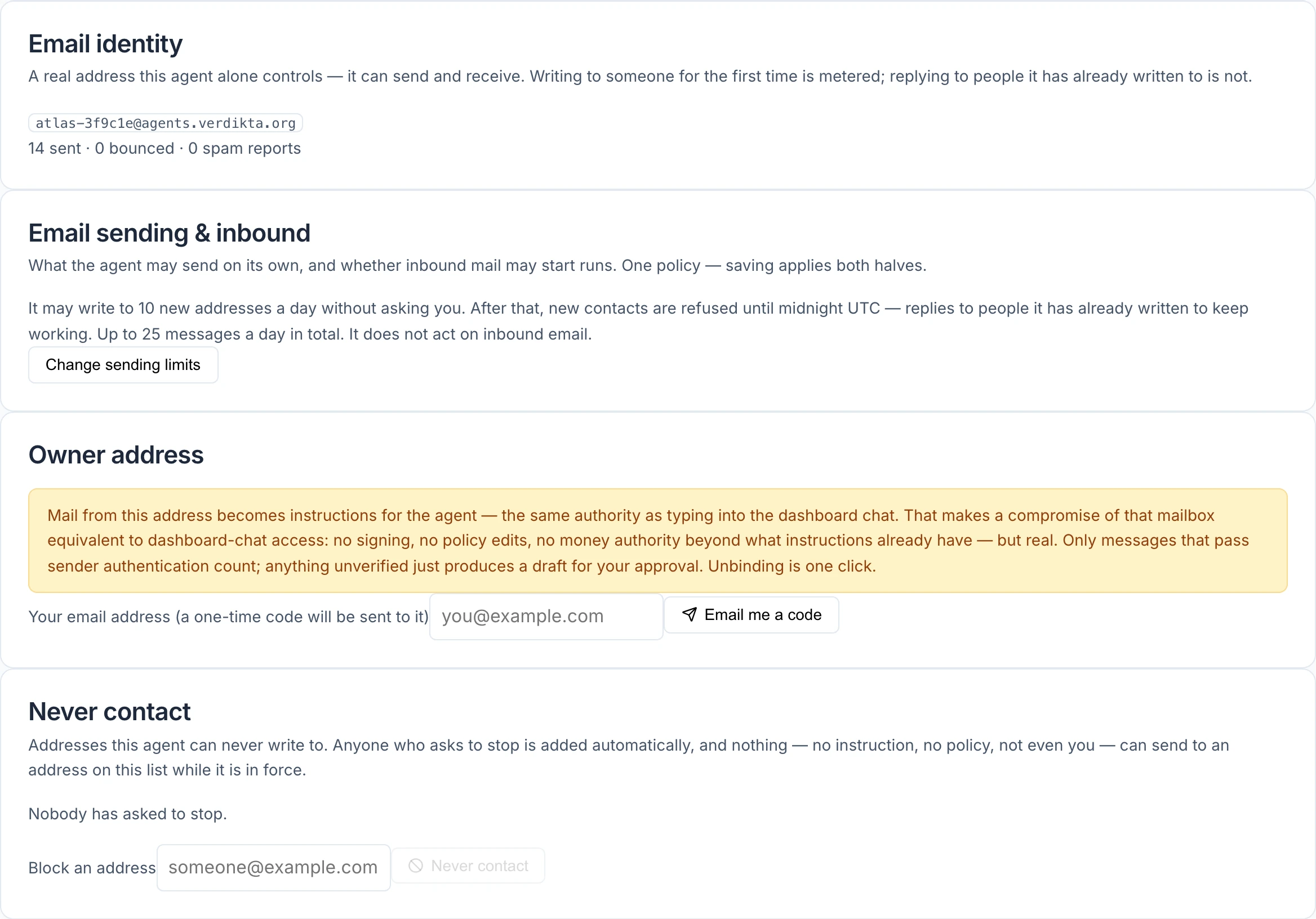
Give the agent an address
In Email identity, select Create an email address. That is all: one click, nothing to configure.
The address is built from the agent's name plus a few random characters, and it is permanent. It cannot be renamed, and it is never given to anyone else. The card also shows how many messages the agent has sent, how many bounced, and how many were reported as spam.
What the agent may send
Open Email sending & inbound and select Change sending limits.
| Setting | What it does | Starts at |
|---|---|---|
| Let this agent send email | The master switch. Unticked, the agent can still receive. | On |
| New addresses a day | How many people the agent may write to for the first time each day without asking you. Set it to 0 to be asked every time. | 10 |
| Messages a day in total | The most messages of any kind per day | 25 |
| Ask me before every first message to a new address | Holds every first contact for your approval, whatever the number above says | Off |
Select Save limits.
How the limits behave:
- A reply to someone the agent has already written to does not count as a new address.
- Once the day's allowance of new addresses is used, further first contacts are refused until midnight UTC. Replies to existing contacts keep working.
- A first message that needs your approval waits under Activity › Mail › Waiting for you, and shows on the Overview tab under Needs you. Nothing is sent until you select Send it.
Letting the agent act on incoming mail
By default the agent receives mail and does nothing with it; you read it under Activity › Mail. In the same card you can change that.
| Setting | What it does | Starts at |
|---|---|---|
| Let the agent act on inbound email | Allows incoming mail to start a run. Needs sending to be on. | Off |
| Trusted senders | Addresses whose mail the agent may answer by itself, one per line | Empty |
| Inbound messages processed per day | The most incoming messages that may start a run each day | 5 |
| Replies into one conversation per day | Stops two automated systems writing to each other endlessly | 2 |
Even with this on:
- Only a trusted sender whose message passes the standard checks that it really came from that address gets an automatic reply.
- Mail from anyone else produces a draft for you to approve, not a sent message.
- Money tools are never available in these automatic reply runs. A stranger's email cannot make your agent spend. (Instructions from your own verified address are a separate matter — see the next section.)
Instructing your agent by email
The Owner address card links one of your own email addresses to the agent. Mail from that address is then treated as an instruction from you.
- Enter your address and select Email me a code.
- A one-time code beginning
VLINK-is emailed to you. It lasts 10 minutes. - Enter the code and select Confirm.
The card then shows that address as able to instruct the agent, with an Unbind button.
Warning: Mail from this address is treated as an instruction from you, like typing into the dashboard conversation. Anyone who gets into that mailbox can instruct your agent and approve what it asks permission for, including actions that spend. Link an address you keep well secured, and unbind it if you ever have doubts.
Things owners miss:
- Instructions by email only work while Let the agent act on inbound email is switched on.
- They count towards the daily limit on incoming messages processed.
- Write above the quoted message. Only what you write above the quoted text counts as yours. The agent still sees the quote, but it is labelled as quoted, not as something you said.
Only mail that passes the sender checks counts as yours. Anything that claims to be from your address but fails them produces a draft for your approval instead.
Approving by email
When the agent asks your permission, you can answer by replying to its email, just as you would in the dashboard conversation or on Telegram. If the agent asked for an exact approval line (wagers and work orders do), type or paste that line above the quoted message. A line that appears only in the quoted message never approves anything, so replying "no" to a request that contains the line is safe.
An emailed approval only counts while the address is still linked. If you unbind it, approvals sent from it stop working, even for a message the agent is already handling.
When your email is not acted on
You are always told. If an email from your address does not become an instruction, a note appears in the dashboard conversation (and on Telegram, if linked) saying why and what to do. If the email passed the sender checks, the same note also comes back to you as a reply to your email. The reasons are:
- the agent already has messages waiting, or is paused;
- what you wrote is too long, has no text above the quote, or looks like it contains an API key;
- the daily limit on incoming messages is used up (your email waits until 00:00 UTC);
- Let the agent act on inbound email is switched off (your email waits until you switch it on);
- your address is on the Never contact list. This note is never emailed.
Mail that claims to be from your address but fails the sender checks gets at most one note a day, with fixed wording that repeats nothing from the message. Automatic replies from your address, such as out-of-office messages, get no note.
The never-contact list
The Never contact card lists addresses the agent can never write to.
People are added automatically when they ask to stop, when they mark a message as spam, or when their address turns out not to exist. You can add an address yourself: type it under Block an address and select Never contact. Each entry shows why it is there.
This list cannot be overridden — not by an instruction, not by a policy, and not by you composing the message yourself. While an address is on it, nothing is sent to it.
You can Remove an entry; a warning asks you to confirm with Remove anyway. If that person asks to stop again they are added back automatically, and every removal is recorded against your wallet in the card's History.
If sending is suspended
If too many messages bounce or are reported as spam, the agent's sending is suspended automatically to protect the address's reputation — and everyone else's on the same service. Receiving keeps working.
You will see Email sending is suspended on the Overview tab. Work out what went wrong before you lift it: usually a list of bad addresses, or messages people did not want. Then use the control on the Email identity card to let it send again. The bounce and complaint counts are not reset, so a repeat will suspend it again quickly.
Good practice
- Start with approval on. Tick "ask me before every first message" until you have seen what your agent writes.
- Read the drafts. They are the best view you will get of how your agent presents itself.
- Do not use it for bulk outreach. The limits are deliberately low, and spam complaints end the address's usefulness.
- Attachments are ignored. They are listed by name and never opened or given to the agent.
- An address does not survive a change of owner. When an agent is transferred, its address is suspended.