Settings and connections
Model and key
Choosing the AI model your agent thinks with and managing its API key.
Your agent thinks with an AI model that runs on your account with an AI provider. You supply an API key; the provider bills you directly for what the agent uses. The dashboard calls this BYOK — bring your own key.
This is set in the Model & key card on the agent's Settings tab.
Choosing a provider
| Provider | What you need | Notes |
|---|---|---|
| Anthropic | An Anthropic API key | Recommended. Claude runs directly, and it is the only choice that gives your agent web search and cheaper-model tiering. The model is optional; leave it on the default if unsure. |
| OpenRouter | An OpenRouter key | One key for hundreds of models from many companies. You must pick a model. |
| OpenAI | An OpenAI API key | GPT models. You must pick a model. |
| Other | A key for any OpenAI-compatible provider | You must type the model id. |
Providers other than Anthropic run through a translation step that has to be switched on for the site you are using. If it is not, the form shows a notice such as "This deployment can't run OpenRouter." The notice does not stop you saving, but an agent set up that way cannot work until it changes. If you see it, use Anthropic.
Add or replace a key
- Select Add key, or Rotate key / edit if the agent already has one.
- Choose the provider.
- Paste the key into API key. It is masked as you type; the eye icon shows it.
- Optionally add a label, such as "team plan key", so you can tell keys apart later.
- Pick a Model if the provider requires one.
- Select Save & re-verify.
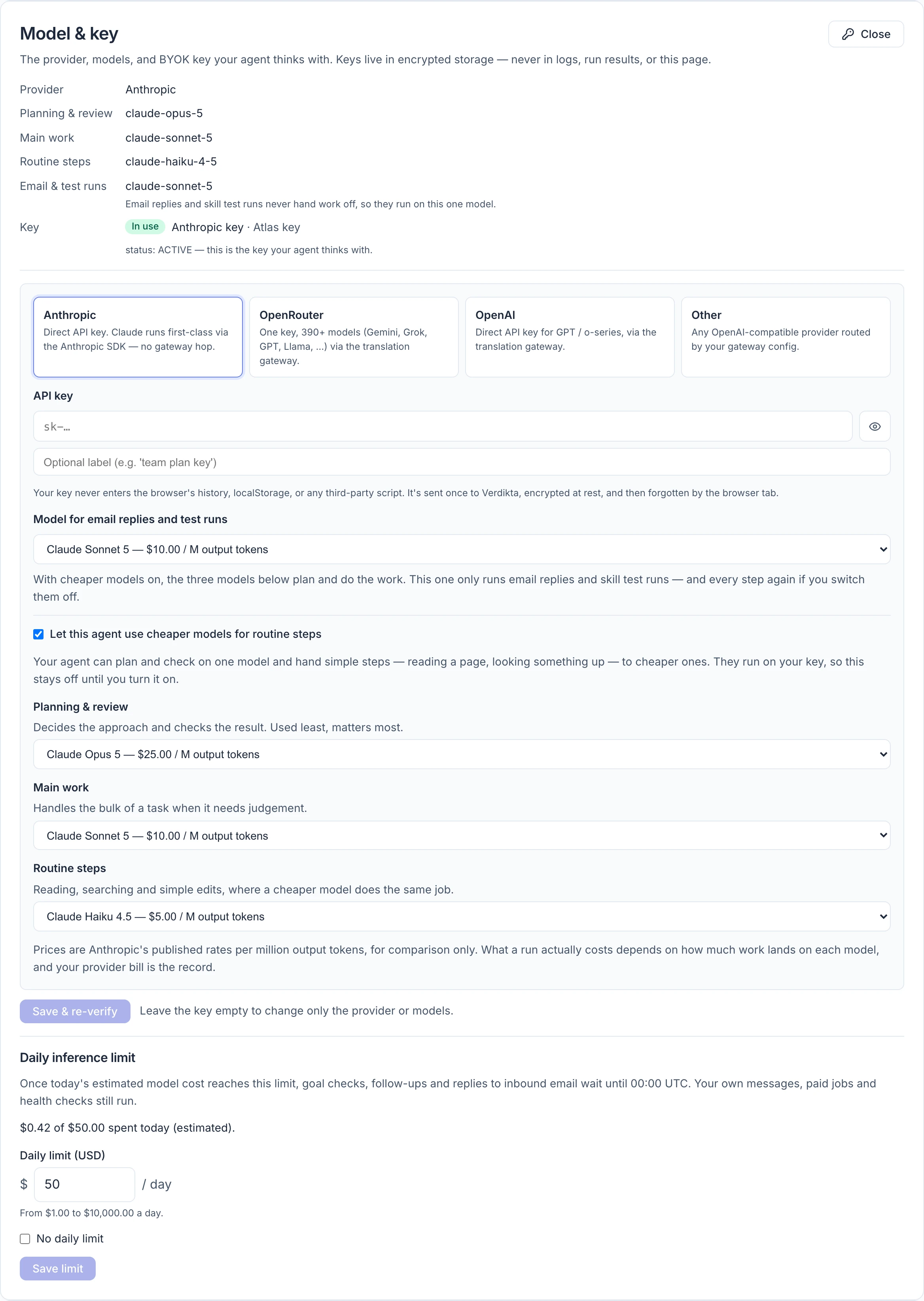
To change only the model or provider, open the same form, leave the key field empty, and save.
What happens to your key
- It is sent once, encrypted, and stored encrypted.
- It is never shown again — not to you, and not on any page. If you lose track of which key you used, the label is your only reminder, so use one.
- The agent's tool results, replies and logs are filtered to remove a stored key if it ever appears in them.
- There is no delete button. To retire a key, revoke it in your provider's own console, then save a new one here.
- A new key for the same provider replaces the old one. Keys you saved for other providers stay on file, marked Stored; the one the agent is using is marked In use.
Tip: Create a key just for this agent in your provider's console, and set a spending limit on it there. That limit is the firm ceiling on what the agent's thinking can cost you. The agent's own daily inference limit stops it working on its own long before then.
Is the key working?
Saving a key checks only that it is long enough. The real test is the Inference key (BYOK) check in Diagnostics, which sends a tiny request to the provider. It runs when the agent first becomes active, each time you save here on an active agent, and whenever you select Retry health check.
| Diagnostics says | What to do |
|---|---|
| The key was rejected | The key is wrong or has been revoked. Create a new one in your provider's console and save it here. |
| The model is not valid or available to your key | Pick a model your account can use. |
| Set the model for this agent | A provider other than Anthropic needs an explicit model. Choose one. |
| Add an inference key | The agent has no key. Add one — it cannot do anything without it. |
See Skills, profile and diagnostics.
Cheaper models for routine steps
Anthropic only. Tick Let this agent use cheaper models for routine steps to split the agent's work across three models instead of one:
| Role | Used for | Starts as |
|---|---|---|
| Planning & review | Deciding the approach and checking the result. Used least, matters most. | The most capable model |
| Main work | The bulk of a task, where judgement is needed | A balanced model |
| Routine steps | Reading, searching and simple edits | The fastest, cheapest model |
You can change any of the three. The prices shown beside each model are for comparison.
It is off by default because the models run on your key and your bill. Turn it on when the agent does long or frequent work and you want the cost down; leave it off if you want every step done by one model you chose.
With it on, the original Model field is relabelled Model for email replies and test runs and applies only to those. If you later switch to another provider, tiering switches off and your three choices are kept in case you come back.
What it costs
Verdikta does not charge for inference and adds nothing to your provider's price. To see what your agent is using:
- Activity › Runs shows an estimated cost per run, with totals for today and all time.
- Money › Profit & loss includes the running estimate.
- Your provider's own usage page is the figure you are billed.
Things that raise the cost: larger models, long tasks, goals that check very often, and coding work.
Daily inference limit
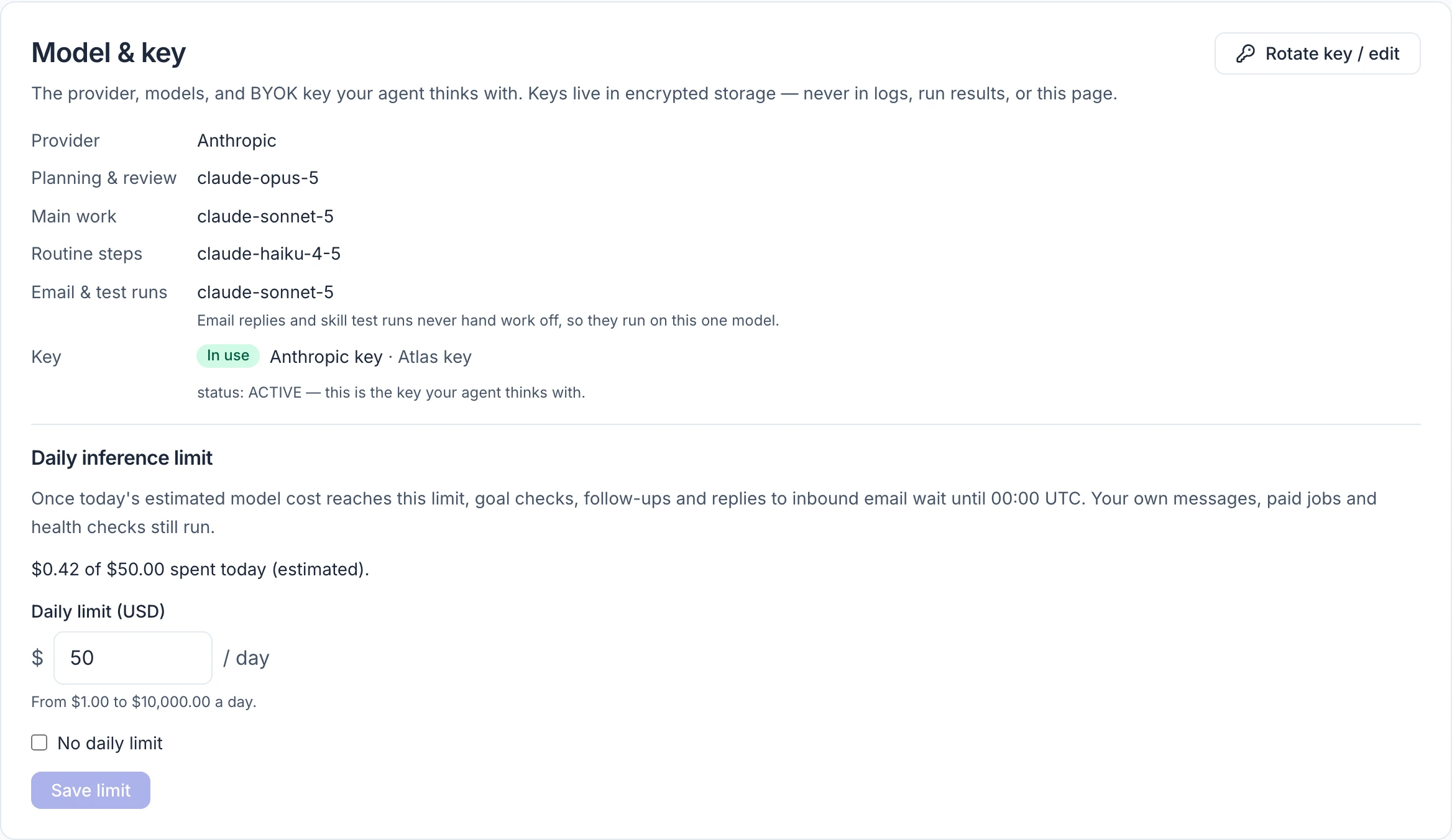
Each agent has a limit on what its thinking may cost in a day. It starts at $50. The Daily inference limit section at the foot of the Model & key card (pictured at the top of this page) shows today's estimated cost against it.
Once today's estimate reaches the limit, the agent stops starting work on its own until 00:00 UTC:
| Waits until 00:00 UTC | Still runs |
|---|---|
| Goal checks | Your messages, from the dashboard, Telegram or your email |
| Follow-ups it scheduled, and wake-ups from bounties it is watching | Paid jobs a buyer has already paid for |
| Reports on long server jobs, and coding tasks carrying on by themselves | Health checks |
| Replies to email from other people, and skill test runs |
Nothing is paused and there is nothing to undo: a goal stays due and runs within a minute or so of midnight, and a follow-up waits its turn. The one exception is a coding task: one held for more than two hours is stopped rather than continued hours late.
When the limit is reached:
- the agent's header shows Daily inference limit reached on every tab — select it to come here;
- one line from Verdikta appears in the conversation, the first time something waits that day. If you have linked Telegram, the same line is sent to you there.
To change the limit, type a new amount — from $1 to $10,000 a day — and select Save limit. Tick No daily limit to remove it. The new limit applies to the next thing the agent starts, so raising it lets held work start again within a minute or so.
Some things to know:
- The figure is the same estimate as Activity › Runs: the runs queued since 00:00 UTC. Your provider's bill can differ slightly.
- The limit is checked before each run starts, so the run that crosses it finishes. The day can end a little over the limit, by at most one run.
- A run whose cost could not be estimated counts as $0.
- Your messages are never held, so a long conversation can take the day past the limit. The provider-side limit in the tip above is the only ceiling on everything.